








Back in November 2024 I wrote a blog called “We have asked and Boomi has delivered” after Boomi introduced Branch and Merge to the platform. At the time it felt like one of those features developers had been waiting for. Finally, we had a way to isolate development work instead of worrying about multiple developers working on the same components at the same time.
Since then, I have been working with Branch and Merge across several projects. After using it for a while I thought it would be useful to revisit the topic. Not from a release announcement perspective, but from the point of view of what it looks like when you start using it in day-to-day development.
This is not a guide on how to use Branch and Merge. Boomi already provides documentation and best practice guidance for that. Instead, I want to share a few observations from using it on real projects where multiple developers, feature work, and production fixes are happening at the same time.
The intended workflow
The recommended approach when working with Branch and Merge in Boomi is fairly straightforward. The main branch acts as the stable baseline and should contain components that are ready for deployment. Production deployments should originate from this branch.
Development work happens in feature branches, where developers work on their assigned features, user stories or bug fixes. Once development is complete and tested, those changes are merged back into the main branch so that a new deployable version of the process can be created.
For urgent production issues, a hotfix branch can be created from the deployed version of the component. The fix can then be tested and merged back into the main branch so the correction becomes part of the stable version.
Boomi also recommends several best practices around collaboration. These include assigning work using feature-based development, using clear naming conventions for branches, selecting only completed components during merges, and periodically syncing feature branches with the main branch so conflicts can be detected earlier.
On paper this workflow is simple and works well. In practice, things can become a bit more interesting once multiple developers and multiple changes are happening at the same time.
When feature work and hotfixes happen together
One scenario I have run into more than once is when a developer creates a feature branch to implement a change to a process while a production issue requires a hotfix on that same process. In that case, a hotfix branch is created from the deployed version of the component. The fix is tested and then merged back into the main branch so it can be released. At that point the main branch contains the hotfix, while the feature branch still contains the earlier version of the process that the developer originally branched from.
To continue development on the latest version of the process, the hotfix change needs to be applied to the feature branch as well. In practice, this usually means applying the same change again within the feature branch. If the hotfix and the feature work are handled by different developers, it requires a bit of communication to make sure the change is applied consistently.
Version behaviour during merges
Another thing I noticed fairly quickly when working with Branch and Merge is how component version history appears once changes are merged back into the main branch.
When viewing the revision history of a component on the main branch, version numbers can appear to skip. In the example below you can see versions such as 132, 132 and then 129, with version 130 and 131 missing.
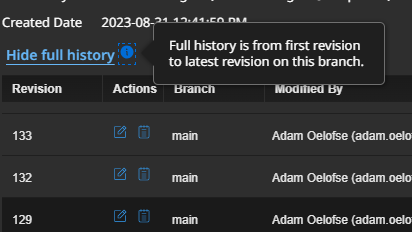
Image 1: Example showing skipped version numbers in component revision history
The missing version does not mean it was deleted. It usually means the change was made on another branch and that version exists there. However, when looking at the history from the main branch I cannot determine exactly where that version was created. I can see that a change occurred on another branch, but I cannot confirm from this view whether a merge request was completed or which branch the change originated from.
If the branch where that version exists has already been cleaned up, it can be difficult to trace exactly where the change was introduced.
Another detail I noticed is that the Modified By field reflects the developer who performed the merge rather than the developer who originally implemented the change in the feature branch. Because of this, the revision history on the main branch does not always clearly show who initially made the change.
Syncing feature branches with main to identify conflicts early
Boomi recommends periodically syncing feature branches with the main branch so conflicts can be identified earlier. The idea is that by bringing the latest changes from main into a feature branch, developers can resolve conflicts locally rather than encountering them during the final merge. This is good guidance and it does help surface potential issues earlier in the development cycle.
However, when main is merged into a feature branch the Modified By metadata for those components changes to the developer performing the merge. Later when the feature branch is merged back into main, those components can appear as modified even though the developer working on the branch did not actually change them. Because of this, I found that merge reviews can sometimes contain more modified components than expected, which means the changes need to be reviewed carefully to confirm what actually changed.
Coordinate merges in a team
Another practical detail I noticed fairly quickly is that only one merge request can be active at a time. This applies whether merging a feature branch into main or syncing main into a feature branch. While a merge request is open, other developers cannot start their own merges targeting that branch.
On smaller projects this is usually not very noticeable. On larger teams it can sometimes mean developers need to coordinate merges so they do not block each other.
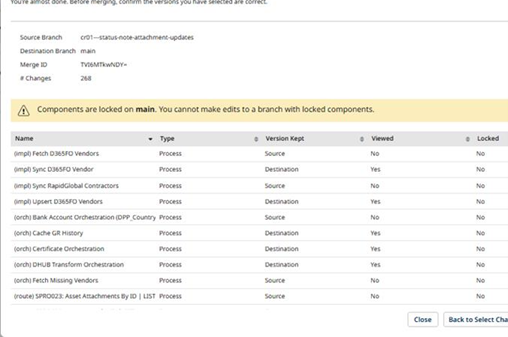
Image 2: Example showing the branch locked while a merge request is active
Handle merge request conflicts without blocking the team
When a merge request contains conflicts, it can take some time to review the components and understand exactly what changed. Instead of keeping the merge request open while investigating the conflict, I usually take note of the component name and the versions shown in the merge screen and then close the merge request. The merge request remains visible in the Merge Requests view with a status of Reviewing. This allows other developers to proceed with their merges rather than waiting.
Once I have reviewed the conflict and confirmed what changed, I start the merge again using the same source and destination branches. Boomi continues with the existing merge request rather than creating a new one. From there I normally follow one of two approaches:
- If I confirm that either the source or destination version can safely overwrite the other, I simply select the appropriate version during the merge review and continue.
- If I find that changes from both versions need to be preserved, I manually apply the required changes to the process first to ensure nothing is lost. After that I return to the merge request and continue the merge, but I exclude that component so it is not part of the merge anymore.
One thing to be aware of is that when returning to the original merge request, the versions shown in the merge screen will still reflect the versions from when the conflict was first detected. The merge request can be deleted and recreated, but I generally avoid doing that and instead continue with the existing request.
Using this approach helps keep merges moving within the team rather than blocking development while conflicts are being investigated.
Recent improvements and final thoughts
While working with Branch and Merge recently, I also noticed a small but useful improvement in the interface. Previously if a merge request became stuck, I had to retrieve the merge ID and remove it using the Boomi API. This can now be done directly from the merge request itself in the interface.
Another improvement is the ability to revert a merge request. Earlier guidance indicated that once a merge was completed it was permanent. It is now possible to revert a merge, and when doing so Boomi creates a new version of the component on the destination branch.
This makes it much easier to recover from an incorrect merge without having to recreate the changes manually.
Final thoughts
Overall Branch and Merge is still a very welcome addition to the Boomi platform. It allows developers to work more independently and significantly reduces the risk of interfering with someone else’s work during development.
Like most development tooling, the feature itself is only part of the equation. Once multiple developers, feature branches, and hotfixes are all happening at the same time, I quickly learned that clear processes and good communication become just as important as the tooling itself.
One area where I still spend a bit of time is when reviewing conflicts between components. The comparison screen will indicate that something like a Process, Canvas, or Map has changed, but it does not always show exactly what changed within that component. When I run into this situation I normally export the component XML from both branches and compare the files directly. That usually makes it much easier to identify the actual change and decide how the conflict should be resolved.
From my experience Branch and Merge has made collaborative development in Boomi much easier than before, and with the improvements that continue to be added the experience is steadily getting better.